Excel|2007|2003|Microsoft Excel|Formula|Function|Pivto Table|Excel Topics|Passwords|Hyperlink Excel Guru: cell
Showing posts with label cell. Show all posts

Monday, September 28, 2009

Excel: Draw a line through a value in a cell (strikethrough) in Excel 2003/XP/2000/97

Also Learn how to Draw a strikethrough in Excel 2007.
Question : How Do I Draw a line through a value in a cell in Excel 2003/XP/2000/97 ?
Answer : Select the Text that you wish to stikethrough. This can either be the entire cell or only a character in the cell. While your mouse is over the selected text, Right- Click and then select "Format Cells" From the popup menu.

When the Format Cells window appears, select the Font Tab. check the Strikethrough Checkbox. Click on the Ok Button.


Now When you retrun to your spreadsheet, you should see a strike throuhg your selected text.

Excel : Draw a line through a value in a cell (Strike through) in Excel 2007

Also Learn How to Draw a strickthrough in Excel 2003/XP/2000/97
Question : How do I draw a line through a value in a cell in Excel 2007 ?
Answer : Select the Text that you wish to Strikethrough. This can either be the Entire cell or only a character in the cell. While your mouse is over the selected text, Right - Click and then select " Fromat Cells " From the popup menu.

When the Format cells window appears, select the Font Tab. Check the Strikethought checkbox. Click on the OK Button.


Now when you return to you Spreadsheet, you will see a strike through your selected text.


Excel : Create a subscript value in a cell in Excel 2003/XP2000/97

Also Learn how to create a subsctipt value in a cell in Excel 2007.
Question : How do I Create a subscript value in a cell in Excel 2003/Xp/2000/97 ?
Answer : Select text that you wish to convert to subscript. This can either be the entire cell or only a character in the cell.

While your mouse is over the Selected text, Right - Click and then select "Format Cells" From the popup menu.
When the Format Cells window appears, select the Font Tab. check the Subscript checkbox.


Now when you return to the spreadsheet, you should see the subscript value.

Excel: Create a Subscript Value in a cell in Excel 2007

Also Learn How to Create a Subscript value in a cell in Excel 2003/XP/2000/97
Question : How Do I Create a Subscript value in a cell in Excel 2007 ?
Answer : Select the Text that you wish to convert to subscript. This can either be the entire cell or only a character in the cell.

While your mouse is over the selected text, Right-Click and then select " Format Cells" From the popup menu.
When the Format Cells Window appears, select the Font Tab. Check the Subscript checkbox.


Now when you return to the spreadsheet, you should see the subscript value.


Sunday, September 27, 2009

Excel: Create a Superscript Value in cell in Excel 2003/Xp/200/97

Also learn how to Create a superscript value in a cell in Excel 2007
Question : How do I Create a superscript value in a cell in Excel 2003/ XP/ 2000/ 97
Answer : Select the Text that you wish to convert to superscript. this can either be the entire cell or only a character in the cell.

While your mouse is over the selected text, right - click and then select "Format Cells" From the popup menu.

When the Format cells window appears, select the Font Tab, Check the Superscript checkbox.

Now When you return to your spreadsheet, you should see the selected text as a superscript value.

Excel: Create a Superscript value in a cell in Excel 2007

Also Learn how to Create a superscript value in a cell in Excel 2003/XP/2000/97


Question : How do i Create a superscript value in a cell in Excell 2007 ?


Answer : Select the text that you wish to convert to superscript. this can either be the entire cell or only a character in the cell.


While your mouse is over the selected text, right click and ten select " Format Cells" From the Popup menu.


When the Format Cell window appears, select the font Tab. check the Superscript checkbox.


Now when you return to your spreadsheet, you should see the selected text as a superscript value.

Friday, September 25, 2009

Excel : Rotate Text in a cell in Excel 2003/XP/2000/97

Also Learn How to Rotate text in a cell in Excel 2007

Question : How do I Rotate Text in a cell in Excel 2003/XP/2000/97

Answer : Select the cells that you wish to rotate the text for, Right Click and then select "Format Cells" From the popup menu.


When the Format Cells window appears, select the Alignment tab. Then set the number of degrees that you wish to rotate the text. This valus ranges form 90 degrees to - 90 Degrees.


Now when you return to your spreadsheet, the text should be rotated.

Excel: Rotate Text in a Cell in Excel 2007

Also Lear How to Rotate Text in a Cell in Excel 2003/ Xp/2000/97.

Question : How do I rotate text in a cell in Excel 2007 ?

Answer : Select the Cells that you want to rotate the text. Right Click and then select "Format cells" From the popup menu.

When the Format cells window appears, select the Alignment tab. Then set the number of degrees that you wish to rotate the text. This value ranges from 90 degree to -90 degrees.

Now when you return to your spreadsheet, the text should be rotated.


Tuesday, September 22, 2009

Excel : Protect a Cell in Excel 2003/Xp/2000/97

Also Learn How to Protect a cell in Excel 2007.
Question : How do I Protect a cell form being edited by others in Excel 2003/ XP/2000/97 ?
Answer : First, you'll need to up-protect all of the cells on your sheet. To do this, select all of the rows and columns in your sheet. Right -Click on then select " Format Cells" From the Popup Menu.


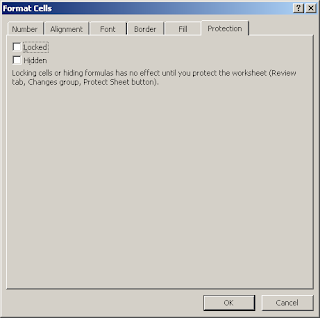
When the Format Cells Window appears, select the Protection tab. Uncheck the " Locked " Checkbox. Click on the OK Button.

Next, Select the cells that you wish to protect. Right - Click and then select "Format Cells" form the Pop up Menu.

When the Format Cells Windown appears, Select the Protection tab. Check the "Locked" Checkbox. Click the Ok Button.


For the Locking of the cells to take effect, you must also protect the worksheet. To do this, select protection and then " Protect Sheet" Under the Tool Menu.


A "Protect Sheet" Window will appear. You may enter a password to protect the shee. The password is optional. click on the OK Button.

Excel : Protect A Cell in Excel 2007

Also Learn How to Protect a cell in Excel 2003/ Xp//2000/97.

Question : How do I Protect a cell form Being edited by others in Excel 2007 ?
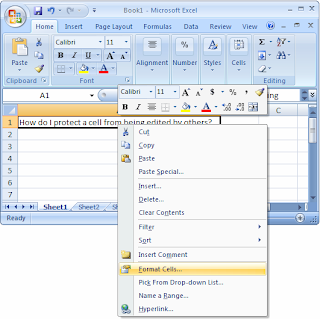
Answer : First, you'll need to up-protect all of the cells on your sheet. to do this, select all of the rows and columns in your sheet. Right - Click on then select "Format Cells" from the popup Menu.


When the Format cells window appears, select the protection tab. Uncheck the " Locked" checkbox. Click on the Ok button.


Next, Select the Cells that you wish to protect. Right - Click and then select "Format Cells" From the popup Menu.
When the Format Cells window appears, select the Protection tab. Check the " Locked" Checkbox. click the OK Button.
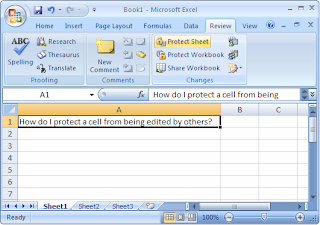
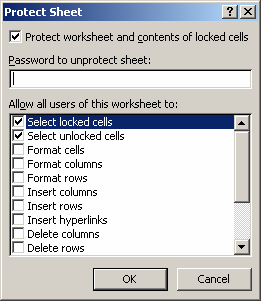
For the locking of the cells to take effect, you must also protect the worksheet. To do this, select the Review tab form the toolbar at the top of the screen. Then click on Protect sheet Button.


A "Protect Sheet" window will appear. you may enter a password to protect the sheet if you wish. The password is optional. Click on the OK Button.

Excel: Wrap text in merged cells in Excel 2003/XP/2000/97

Excel : Wrap Text in Merged Cells in Excel 2003/Xp/2000/97 ?


Also See how To Wrap Text in Merged cells in Excel 2007.

Question : How do i Wrap Text in Merged cells in Excel 2003/Xp/2000/97?

Answer : Select the merged cells that you wish to wrap text. Right - Click and then select " Format Cells" From the popup menu.

When the Format Cells window appears, select the Alignment tab. check the " Wrap Text" checkbox.


Now when you return to the Spreadsheet, you will need to manually adjust the height of the row that contains the merged cells. To do This, position your mouse pointer over the bottom of the row untill a double arrwoed pointer appears. Then hold down the left mouse button and drag downward. Release The left mouse button when the row is the desired height.


Now when you view the contents of the merged cells, you will be able to see that the text is wrapping.

Excel: Wrap Text in merged Cells in Excel 2007

Excel : Wrap Text in merged Cells in Excel 2007


Also See How to Wrap text in Merged cells in Excel 2003/Xp/2000/97.

Question : How do i Wrap Text in Merged Cells in Excel 2007 ?

Answer : Select the Merged cells that you wish to Wrap Text. Right - Click and then select "Format Cells" From the Popup menu.


When the Fromat Cells window appears, Select the Alignment Tab. check The "Wrap Text" Checkbox.


Now When you return to the Spreadsheet, you will need to manually adjust the height of the row that contains the merged cells. To do this, position your mouse pointer over the bottom of the row untill a double arrowed pointer appears. Then hold down the left mouse button and drag downward. Release the left mouse button when the row is the desired height.


Now When you view the contents of the merged cells, you will be able to see that the text is wrapping.


Sunday, September 20, 2009

Excel: Wrap text in a cell in Excel 2003/XP/2000/97

Also learn how to Wrap text in a cell in Excel 2007.

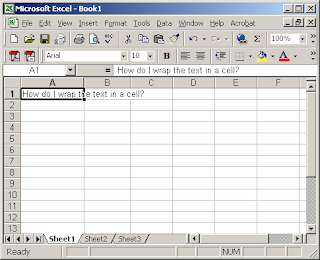
Question : How do I wrap the text in a cell in Excel 2003/Xp/2000/97 ?
Answer : Select the cells that you wish to wrap text in.


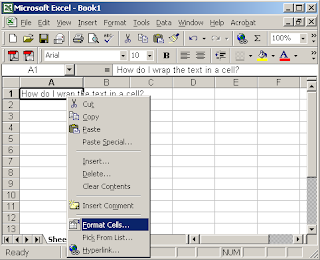
Right- Click and then select "Format Cells" From the popup Menu.


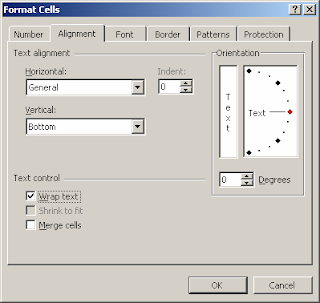
When the Format Cells Window appears, Select the Alignment tab, Check the "Wrap Text" Checkbox.


Now When you return to the spreadsheet, the selected text should be wrapped.